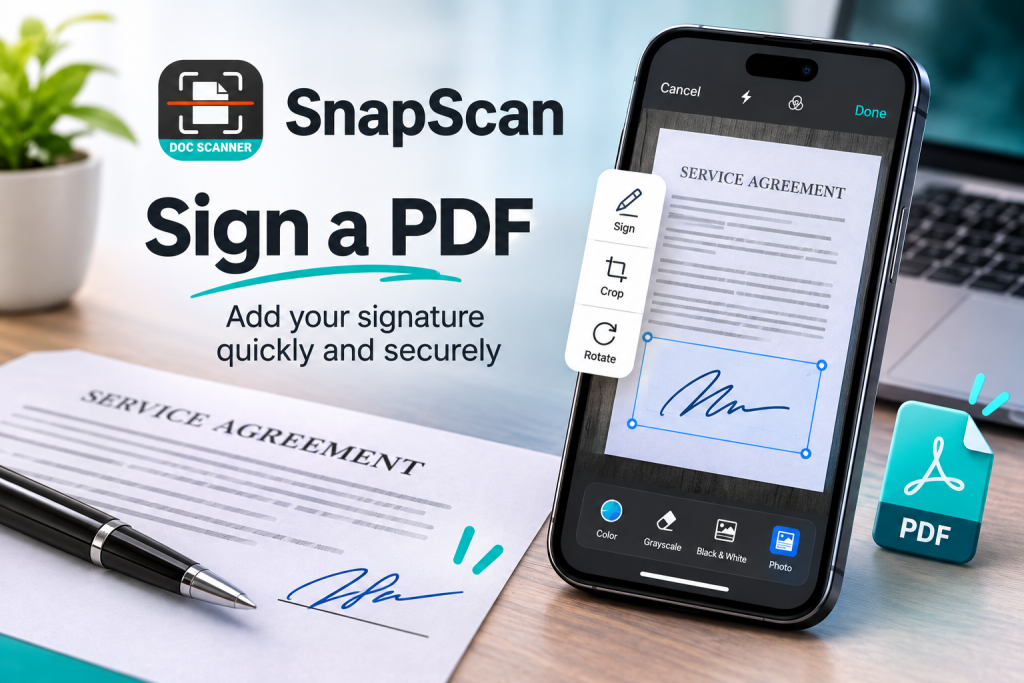
Need to Sign a PDF? Scan it, add your signature on iPhone, and send a clean PDF in minutes. Step-by-step guide with free options.
It’s 6 p.m. An employer, landlord or university office has just emailed a form that must be “signed and returned today.” Your printer is out of ink, or you don’t own one. You don’t need to make a trip to a print shop.
If you have an iPhone, you can turn paper into a clean, signed document and send it back in minutes. This guide shows you how to sign a PDF on iPhone the fast way, plus the mistakes that get signed documents rejected.
The Short Answer: How to Sign a PDF on iPhone
To sign a PDF on iPhone without printing, get the document into digital form (scan it if it’s on paper), add your signature with a markup or scanner tool, place it on the signature line, and share the result as a PDF. Apple’s built-in Markup works for quick jobs. A scanner app like SnapScan is handy when you start with paper and want to scan, clean up, sign and export in one place.
First, What Kind of Document Do You Have?
The right workflow depends on where the document starts.
| Your situation | Best route |
|---|---|
| A PDF arrived by email | Sign it with Apple’s Markup, or open it in a scanner app that supports signing |
| You hold a paper form or contract | Scan it, then sign the scan |
| You only have a photo of the page | Clean it up (crop, straighten, filter), then sign |
| The document must be notarized, witnessed or certified | Check the requirements first, because a pasted signature may not be enough |
Method 1: Sign a PDF on iPhone With Apple Markup (Built In, Free)
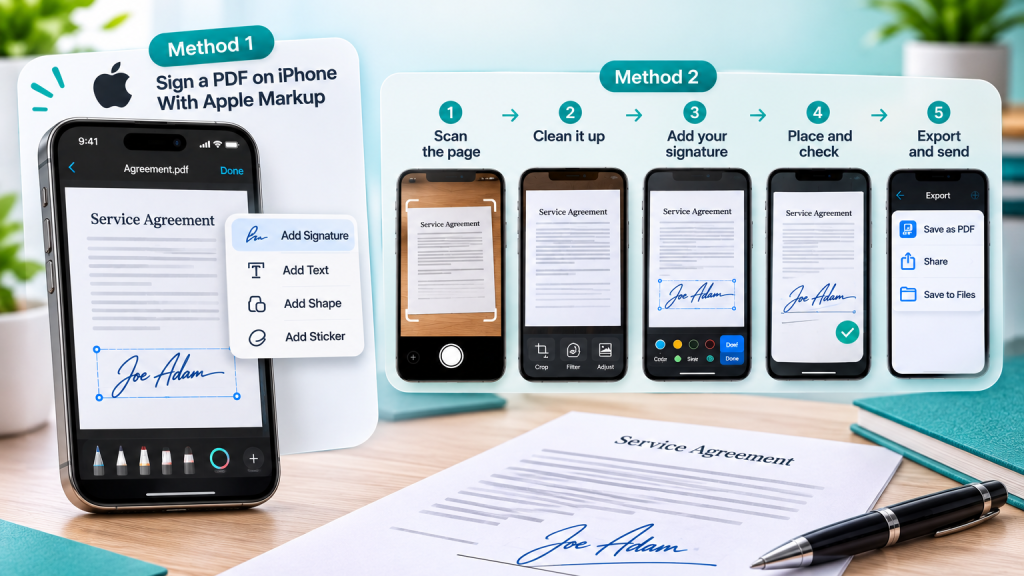
Apple says Markup lets you draw or add text on screenshots and photos and even add a signature to a PDF document. It works from apps like Files and Mail. The general flow is: apple
- Open the PDF in Files or Mail.
- Tap the Markup (pen) icon.
- Tap the plus button and choose to add a signature.
- Draw your signature, drag it to the signature line, and resize it.
- Tap Done and save or send the file.
Apple’s official Markup guide shows the current steps for your iOS version.
Where Markup falls short: it assumes you already have a digital PDF. If your document is on paper, or the page is crooked, shadowed or hard to read, you need to scan and clean it up first.
Method 2: Scan Paper, Then Sign a PDF on iPhone With SnapScan
SnapScan is a free iPhone document scanner. Its official website describes how it captures documents with your camera, improves them with crop, filters and skew correction, lets you sign them, and exports as PDF, JPG or Word. A typical paper-to-signed-PDF workflow looks like this:
- Scan the page. Lay the paper flat in good light. Let the camera detect the edges.
- Clean it up. Crop out the desk, straighten a skewed page, and apply a filter so the text is crisp.
- Add your signature. The app lets you draw it or insert one from an image.
- Place and check. Zoom in and make sure the signature sits on the line without covering printed text.
- Export and send. Save as PDF and share by email, messaging apps or cloud storage.
Menu names may differ slightly between app versions, so follow the on-screen prompts.
Draw It or Insert It? How to Get a Better Signature
A shaky fingertip signature looks different from your real one. If that bothers you:
- Sign on plain white paper with a dark pen, then photograph or scan it.
- Crop tightly around the signature so it doesn’t carry extra white space.
- Insert it as an image where the app supports it, then resize it to fit the line.
- Check the background. If the image has a white box, make sure it doesn’t hide text underneath.
- Use a stylus if you have one, for smoother lines.
Keep your signature image private. Don’t leave it in shared albums or send it to people who don’t need it.
The Pre-Send Checklist (Where Most Documents Get Rejected)
Run through this before you hit send:
- Every required spot is signed or initialed. Multi-page forms often need initials on several pages.
- The date is filled in if requested.
- The text is readable at normal zoom, with no cut-off edges.
- The file is a PDF unless the recipient asked for something else.
- The file size is acceptable. If the portal or inbox rejects it, see our guide on how to compress a PDF under 1 MB on iPhone.
- The file name is professional, for example “Lease-Agreement-Signed-Ahmed.pdf”.
- You sent it to the right person, and you kept a copy.
Is a Signature on a Scanned PDF Valid?
It depends on the document and who is asking. Many employers, schools and landlords accept a signed scan. Some contracts, legal filings and official forms need a witnessed, notarized or certified signature, and a pasted image may not satisfy that. Basic markup tools are for simple electronic signatures, and more advanced certificate-based digital signatures may require a specialized app. When in doubt, ask the requesting party what they accept. This article is general information, not legal advice. wondershare
Which Method Should You Choose?
If you only need to sign a PDF on iPhone once in a while, Markup is usually enough. Otherwise:
- Quick signature on a file you already have: Apple Markup.
- Paper in hand, or a messy photo: scan, clean up and sign in a scanner app.
- Many pages to combine, then sign and send: a scanner app with multi-page scanning.
- High-stakes or legal documents: confirm the requirements before you sign.
About SnapScan
SnapScan is a free document scanner and PDF maker for iPhone and iPad from Codebuster Apps. It’s built for students, freelancers, professionals and anyone who needs to scan, sign and share paperwork without a scanner or printer. Based on its app page, it lets you:
- Scan multi-page documents, receipts, contracts, photos, ID cards and passports
- Crop, rotate, filter and fix skewed or curved pages
- Sign by drawing or inserting a signature image
- Export as PDF, JPG or Word
- Keep scans organized in a built-in file manager
Good to know:
- Free to download, with an optional premium subscription that removes ads and unlocks unlimited scans
- Works on iPhone and iPad with iOS 16.0 or later
- The App Store privacy label states that the developer collects no data. Apple has not verified this.
- Rated 4.0 on the App Store
Get SnapScan on the App Store · Visit the SnapScan website · More guides on the SnapScan blog
About Codebuster Apps
Codebuster Apps builds productivity apps for iPhone and iPad, including a clipboard manager, a resume and cover letter maker, a handwriting font maker, a number keypad and PDF tools. If you’re prepping a job application, you may also like our guide to choosing a no-ads scanner app.
FAQ
How do I add a signature to a PDF on iPhone for free?
Open the PDF in Files or Mail, tap Markup, and add a signature. Or scan the document with a free scanner app that supports signing, then export the signed PDF.
Can I sign a paper document without a printer?
Yes. Scan the paper form with your iPhone camera, add your signature to the scan, and send the signed PDF.
Can I add my signature from an image?
SnapScan lets you insert a signature from an image as well as draw one by hand.
Does SnapScan collect my data?
The App Store privacy label says the developer does not collect data from the app. Apple notes it hasn’t verified this.
What format should I send a signed document in?
PDF is the safest default. SnapScan can also export JPG or Word if the recipient asks for it.
Why was my signed document rejected?
Common causes: missing initials, blurry text, a file that’s too large, a missing date, or a signature type the recipient doesn’t accept. Run the pre-send checklist above.
Final Thoughts
You don’t need a printer to turn paperwork around quickly. Now that you know how to sign a PDF on iPhone without one, the rest is simple: if the form is already digital, use Markup. If it’s on paper, scan it, clean it up, sign it and send it. Download SnapScan and try it on your next form.