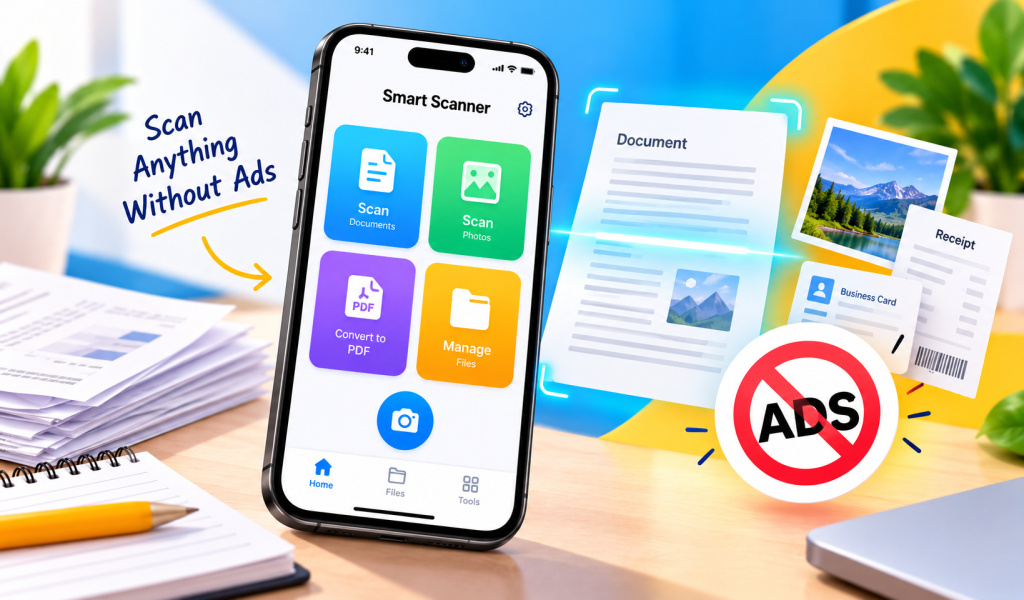
The best scanner app for iPhone is one that captures sharp scans, exports clean PDFs, respects your privacy, and doesn’t bury you in ads. SnapScan is free to download. Its premium subscription removes ads and unlocks unlimited scans. Its App Store privacy label states that the developer collects no data from the app. That label is self-reported and not verified by Apple.
Why a No Ads Scanner App Matters
You scan receipts, ID cards, contracts and tax papers on a phone you carry everywhere. Full-screen ads in the middle of a scan are annoying and break your workflow. For sensitive files, a cluttered app also makes it harder to see where your document is going.
A good scanner app should:
- Detect page edges automatically
- Export a clean PDF in a few taps
- Stay out of your way
- Be transparent about what data it collects
What Makes Scanner Apps Safe for Sensitive Documents?
If you’re searching for safe scanner apps for sensitive documents or a secure PDF vault scanner, check these five things before you scan a passport or bank statement:
- The App Store privacy label. Scroll to “App Privacy” on the listing. Consumer Reports suggests comparing the privacy labels of apps that do roughly the same job, since some differ sharply.
- What the label actually says. Look for “Data Not Collected” versus “Data Linked to You” or “Data Used to Track You.” 9to5Mac explains how to read each section.
- Ads in the app. Ad SDKs can introduce third-party tracking, so check the listing for “Contains Advertising.”
- Control over sharing. You should choose where each file goes: email, messaging or cloud storage.
- Your device security. No app is safer than the phone it runs on. Keep a strong passcode and Face ID on, and avoid scanning sensitive papers on shared devices.
One honest note on the “vault” idea: a true secure PDF vault means an in-app passcode or encryption layer. Check the app’s current feature list before assuming one exists. If you handle highly sensitive files, move the finished PDF into storage you trust.
The FTC’s IdentityTheft.gov has practical guidance on protecting personal information.
Meet Scanner App: Scan Document PDF
SnapScan: Document Scanner App is a productivity app for iPhone and iPad, built by developer Ihsan Ullah (Code Buster). Per its App Store listing, it offers:
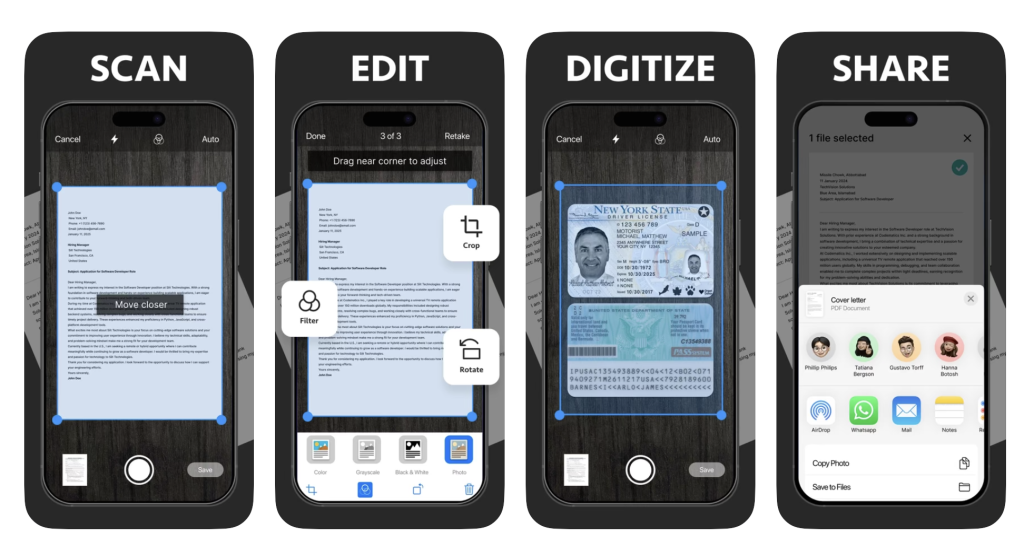
- Scan in 3 steps: scan or digitize documents and ID cards, edit and save, then share as PDF, JPG or Word
- Auto edge detection with crop, rotate and skew/curve removal
- Filters and color enhancement for readability
- Sign PDF by drawing your signature or inserting one from an image
- Converters: JPG to PDF, PDF to JPG, PDF to Word and Word to PDF
- PDF compression to reduce file size
- Multi-page scanning for contracts, books and assignments
- Requirements: iOS 16.0 or later, about 20 MB, rated 4+
The listing says it handles books, ID cards, passports, notes, receipts, business cards, invoices and more. Early App Store reviews mention business receipts, ease of use and scan quality. The sample is small, so judge for yourself by testing a few documents.
You may also like: Australian Coin Value Checker: Identify Your Coins Free
How to Scan a PDF With Your Phone Camera (Step by Step)
Quick answer: Open a scanner app, place the document on a flat, well-lit surface, let the camera detect the edges, adjust the corners if needed, then save or export as PDF.
Using Scanner App: Scan Document PDF
- Open the app and tap to scan.
- Hold your iPhone above the page. Keep it flat, well lit and free of shadows.
- Adjust the crop corners, then apply a filter if the text looks faint.
- Add more pages for multi-page documents.
- Save, sign if needed, then share as PDF, JPG or Word.
Using your iPhone’s built-in scanner (free): Apple’s own guide says to open Notes, tap the Attachment button, choose Scan Documents, and place the document in view of the camera. In Auto mode it captures on its own, and you can drag the corners to fit the page, then tap Keep Scan. The Files app has a similar Scan Documents option. See Apple’s official instructions.
Photo Scanner App High Quality: Tips for Sharper Scans
A photo scanner app high quality result depends on technique as much as software:
- Use natural, indirect light. Avoid flash, which creates glare on glossy prints and laminated cards.
- Shoot from directly above. Angled shots create skew. Auto edge detection and the skew tools help correct it.
- Use a contrasting background. A dark desk behind a white page helps edge detection.
- Clean your lens. Smudges are the most common cause of soft scans.
- Pick the right filter. Use color for photos and a high-contrast filter for text.
- Compress last. Keep the original quality while editing, then reduce file size before emailing.
Top Scanner Apps for iPhone Free: How the Options Compare
If you’re researching top scanner apps for iPhone free, here are the main categories:
| Option | Cost | Ads | Best for |
|---|---|---|---|
| Apple Notes / Files scanner | Free, built in | None | Quick, basic scans |
| Scanner App: Scan Document PDF | Free to download, in-app purchases | Contains ads on the free tier; premium removes ads | PDF editing, signing, converting and compressing in one app |
| Other third-party scanners | Varies | Varies | Check each app’s privacy label and subscription terms |
Whichever you choose, test it with a non-sensitive page first.
Explore Further: The Black Friday Price Illusion
Free vs. Premium: What You Get
The app is free to download with basic features. Per the listing, a premium subscription gives ads-free, unlimited scans. In the Pakistan App Store it lists weekly, monthly, yearly and lifetime plans. Prices vary by region, so check the in-app purchase list before subscribing. Subscriptions auto-renew unless you turn off auto-renewal in your Account Settings at least 24 hours before the period ends.
Who Should Use It?
- Students scanning assignments and notes
- Freelancers and small business owners digitizing receipts, invoices and business cards
- Job seekers preparing ID, certificates and signed forms
- Anyone who wants JPG-to-PDF conversion without juggling several apps
FAQ
What is the best no-ads scanner app for iPhone?
The best option is one that offers a clear ad-free tier and a transparent privacy label. Scanner App: Scan Document PDF removes ads with its premium subscription, and Apple’s built-in Notes and Files scanner has no ads at all.
How do I scan a PDF with my phone camera?
Open a scanner app (or Notes/Files on iPhone), position the document in view, let the camera auto-capture, adjust the corners, then save or export as PDF.
Are scanner apps safe for sensitive documents?
They can be, if you check the App Store privacy label, review permissions and keep your phone secured with a passcode or Face ID. Read the label before scanning IDs or financial papers.
Can I convert photos to PDF on iPhone?
Yes. Scanner App: Scan Document PDF supports JPG to PDF, PDF to JPG and several other conversions.
Does the app collect my data?
The developer’s App Privacy section states “Data Not Collected.” Apple notes that this information has not been verified by Apple.
Can I sign a PDF on iPhone for free?
Yes. You can use the built-in Notes markup, or sign inside the Scanner App by drawing a signature or inserting one from an image.
Final Thoughts
For everyday scanning, the right app should be fast and clear about its privacy and pricing. If you want an iPhone scanner that turns documents and photos into shareable PDFs and drops ads on the premium plan, download Scanner App: Scan Document PDF from the App Store and try it on a few everyday documents first.
